The Time Slot Control application is used to reserve time slots for loading/unloading in manufacturing companies, shipping facilities, logistic warehouses and everywhere it is necessary to maximise product flow with as much efficiency as possible.
You log into the Time Slot Control application at the web address https://xxx.timeslotcontrol.com, where "xxx" represents a unique identifier of the company in which you are going to create a time slot.

To obtain login credentials, use the form in the "Sing up" link, where you fill in the name of your company, first name, surname, email, and telephone number. After the access has been confirmed by the administrator of the application in a given company, you will receive a login name and password to the specified email address.
If you do not have a web address and you are not able to contact the company with which you are interested in creating a time slot, use the website https://www.timeslotcontrol.com/en/for-carriers, where you fill in your name, your company’s name, email, the name of the company with which you want to create a time slot, and describe your request. The information will be forwarded to the administrator of the application in the mentioned company, who will provide you with access to the Time Slot Control application, and you will create the slots directly in the application.
User account management and language selection are available in the upper corner after logging into the application.

Under the "Profile" link, you will be redirected to a page where you can change your password, edit your profile image and set up email notifications.

The application offers users 3 overviews with the possibility of switching among them in the upper right corner.
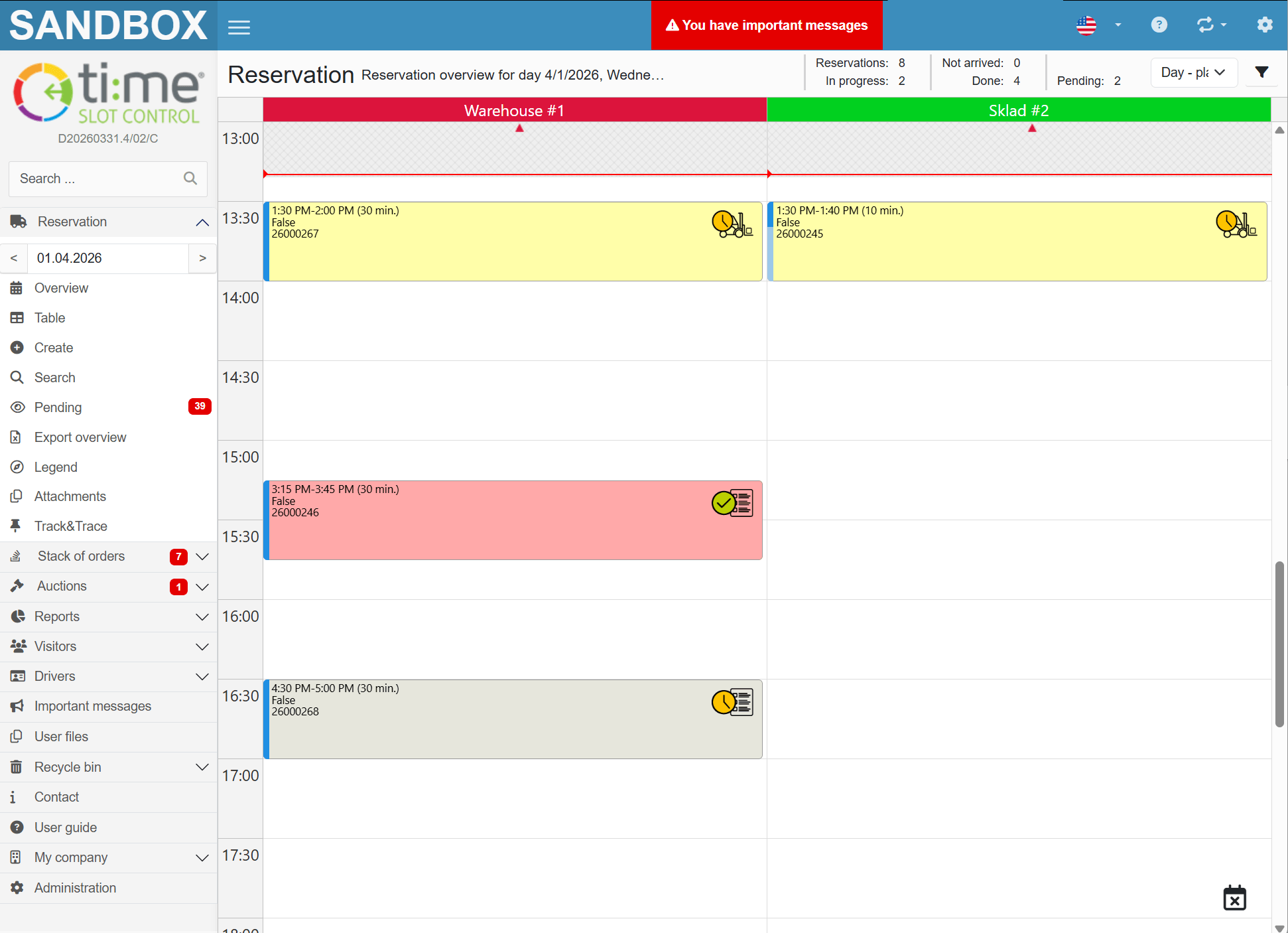
After successful login, the user is on the main overview of planned reservations for the current day.
On the left side of the screen is the user navigation, which serves as a signpost to all important sections of the Time Slot Control system.
In the schedule, loading/unloading gates (resources) of the given company are displayed horizontally. The timeline is displayed vertically.

If the company, with which the user wishes to create a time slot reservation, has multiple branch offices, the user selects the branch in question in the "Reservation" section.
In the calendar, the user selects the required loading/unloading day and then, by clicking on "New" or by clicking on an empty space in the schedule, the user is redirected to a reservation form.
Reservation can only be created for a time slot that:
All unavailable time slots are displayes with gray hatching in the schedule.
The layout of the reservation form and its individual fields are defined by each company individually according to its own requirements, therefore the real form may differ from the one shown below.
The user fills in the required fields in the reservation form.
In the "Delivery" section of the reservation form, the user specifies individual deliveries that will be handled within one time slot reservation. Deliveries can be added at will with the "+" button in the lower right corner. You can register multiple shipments in one time slot.
After filling in all the required data in the reservation form, the duration of the reservation is calculated automatically, which is then indicated in the "Reservation Date and Time" field.
The application supports two modes of calculating the duration of time slots:
In the fixed mode, a fixed duration of one time slot (for example, 60 minutes) is set at the level of each gate (resouce), regardless of the number of shipment units.
The dynamic mode offers calculation of time slots using an algorithm depending on the number of shipment units (pallets / boxes...).
The chosen method of calculating the duration of reservation is solely within the competence of the administrator of the given company’s application and may differ on individual gates (resources).

Attachments are an add-on module of the application. If a company has any attachments enabled, the user is allowed to upload 1-n files.

The approval/ rejection of a reservation by the system administrator of the given company sends an email notification to the end user (the person who submitted the reservation). The approval/ rejection a reservation also changes the pictogram in the schedule accordingly.

Editing of a reservation (change of date, time, information regarding the goods, etc.) is possible for the initiator and the system administrator, both before and after its confirmation. In such a case, an email notification with information about the modification is sent to the initiator and the system administrator, and if the initiator edits the reservation, the request may be subject to a re-confirmation process based on the system settings.
After a vehicle arrives at the gatehouse, the system administrator or the camera system will record this fact and the given reservation will change its status to the carrier is in areal.

After the vehicle arrives at the gate and handling begins, the system administrator records this fact and the given reservation will change its status to processing ongoing.

After the handling has been finished, the system administrator records this fact and the given reservation will change its status to processing finished.

When the vehicle leaves the premises, the system administrator or the camera system will record this fact and the given reservation will change its status to the carrier left areal.

In the case of loading and subsequent shipment to the final destination, the system allows the iniciator to register the fact that the goods have been delivered to the recipient with automatic recording of the date and time of delivery.

If there is a problem during loading/unloading that does not allow the given operation to be completed, the system allows this fact to be registered under the status not completed. The system administrator has the option to state the reason for not completing the given operation, which is available to the iniciator in the reservation form.

In the "Comments" tab, it is possible to add notes and comments, thus creating a thread similar to a regular discussion forum. With each comment, a warning notification goes out to the iniciator and application administrator, if they have this type of notification enabled at the level of their user accounts and their roles.
The stack of orders is an add-on module. If a company has an activated stack of orders, the reservation requester is shown a list of pre-prepared orders to be carried out in the given company. The user can find these orders in the user navigation in the ‘Stack of Orders’ > ‘Unconfirmed’ section.
It is possible to work with stack items in bulk. By selecting a specific order or even multiple orders and confirming them, the user confirms that they count on the given shipments on the specified date, so far without the need to create a time slot. Orders are moved to ‘Confirmed’ by this action. To make a time reservation, the user selects an order from the list of confirmed ones and clicks on ‘Add to Cart’. An overview will be displayed in the application, where the user can click on a free time slot to make a reservation according to the procedure above. The cart works in a similar way to online shopping carts. The selected items in the cart are stored in the Time Slot Control application, and the information from them is automatically filled in the reservation form, and for each order placed in the cart, a ‘Delivery’ section is created in the form. The user fills in the non-prefilled fields and makes a reservation from the items in the cart by saving button. Items are automatically deleted from the cart and moved to ‘Reserved’ in the stack.
Already reserved items of the stack can be re-inserted into the cart and used repeatedly to make a time slot reservation. Multiple reservations can therefore be linked to any item in the stack; the reservations can then be viewed in the stack details, in the ‘Related Reservations’ section.
The shipment auction is an add-on module connected to the stack of orders, in which pre-prepared orders without assigned shipment capacity are stored, which are to be carried out in the given company. A company involves in the auction a defined range of recipients from whom it expects a price offer for a specific shipment. The user then has the option to respond by adding a price and a note. If the user wins an auction, the given order is automatically moved to the stack and it is possible to continue with subsequent process steps in the Time Slot Control application described above.
The Time Slot Control application allows companies to share important messages, which the user is alerted to after logging in and confirms their reading by clicking "I accept".
In the "User files" section, the given company can share with the users any documents with instructions for the movement of carriers within the premises, a map of the premises, etc.
In the "Contacts" section you will find contacts of the employees of the given company managing the Time Slot Control application.