¶ Area maps
The Area maps feature lets you draw the site of a branch office (ramps, parking area, buildings) over an image or a blank background and then use the Live map to see in real time which vehicles are at the ramps and which are waiting on site.
The feature is intended for internal users (dispatchers, warehouse staff, gatehouse). Carriers, drivers and the public reservation form do not see the maps.
¶ Where to find it
¶ Permissions
Permissions are set when editing a role, in the Area map permissions group. The two rights are independent – a user who needs to both manage and view maps must have both.
Users only see and edit maps of the branch offices they have access to. The feature requires no special licence or module activation.
¶ Area map management
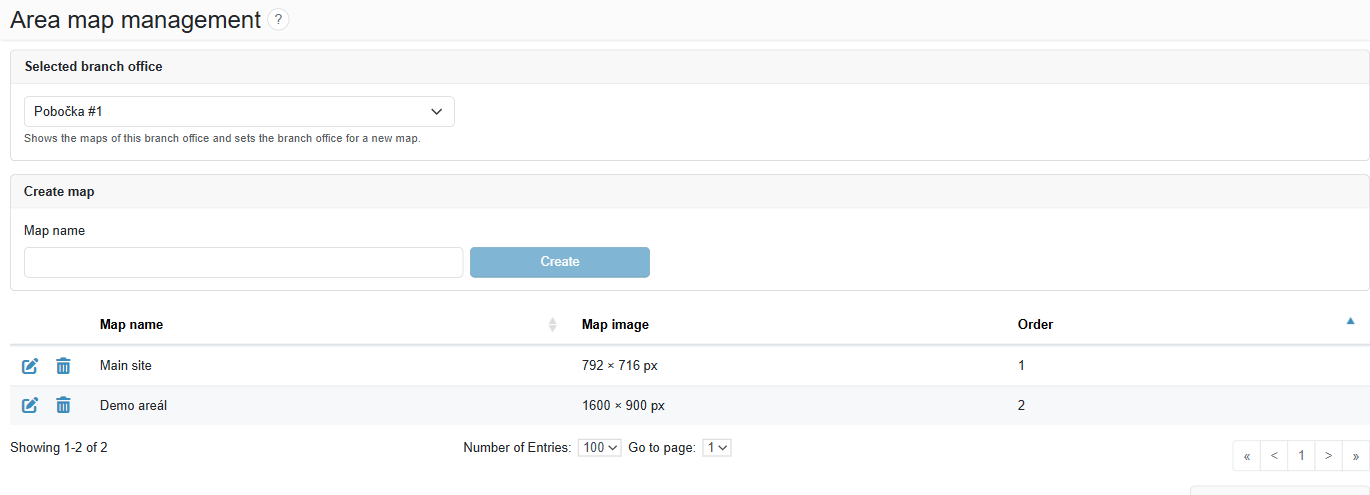
- In Selected branch office, choose the branch office – its maps are listed and a new map will be created for it.
- Fill in Map name and click Create. The new map gets a blank 16:9 background and is placed at the end of the order.
- In the table (columns Map name, Map image, Order), open a map in the designer with the edit icon, or delete it with the bin icon (after confirmation).
¶ Map designer
¶ Map header
¶ Drawing tools
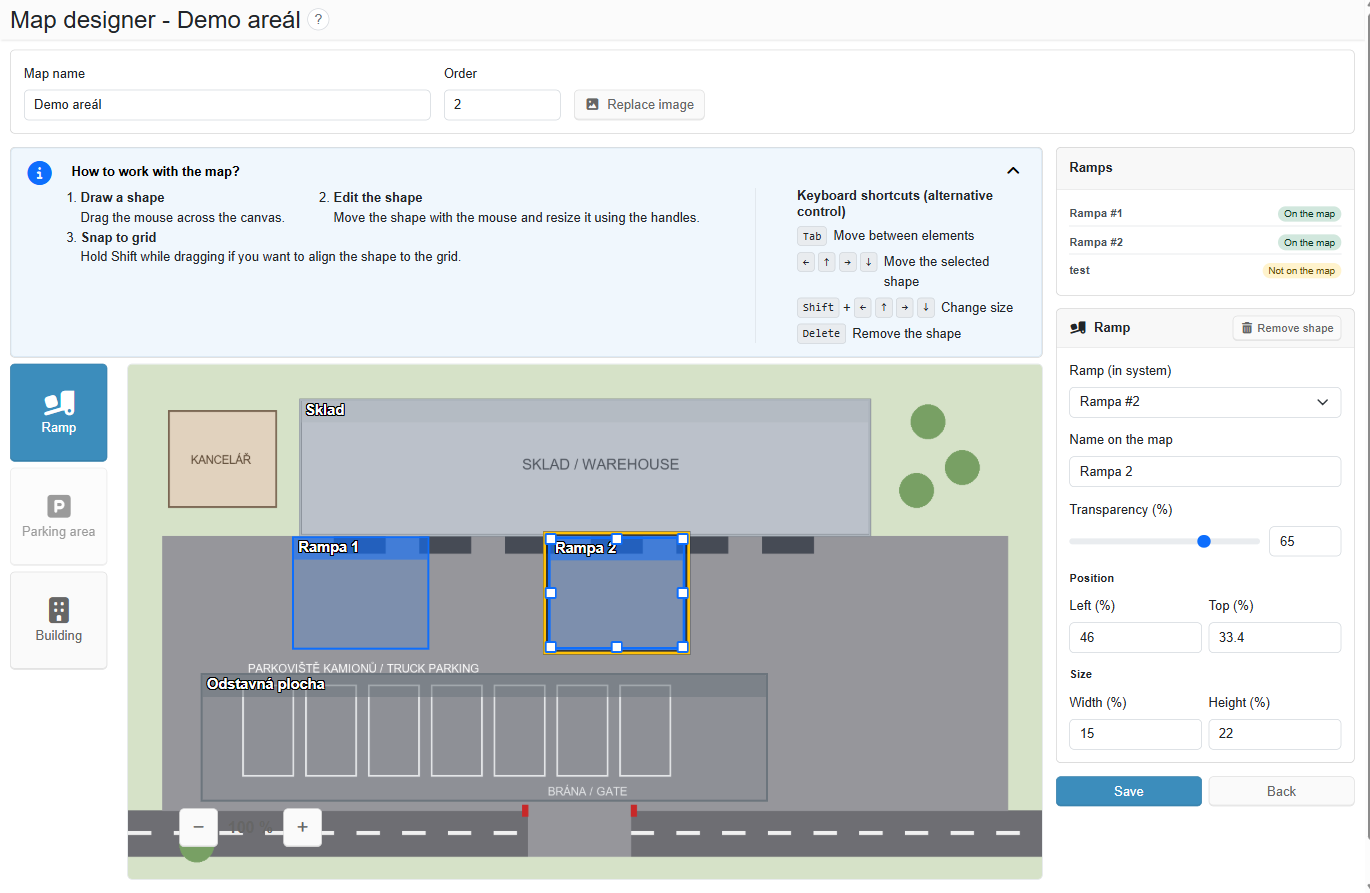
Controls: draw a shape by dragging the mouse across the canvas, move it with the mouse and resize it with the handles. Holding Shift snaps the shape to a grid. Keyboard: Tab switches between elements, arrows move, Shift + arrows resize, Ctrl gives a finer step, Delete removes the shape. The map can be zoomed from 50 % to 300 %.
¶ Shape properties
The Ramps panel lists all ramps of the branch office and shows for each whether it is on the map or not on the map. A shape that refers to a deleted ramp is marked Deleted ramp and must be removed from the map.
Save your changes with Save.
¶ Live map
- Choose a map in Select a map (the browser remembers your last choice).
- The map updates automatically whenever a reservation changes.
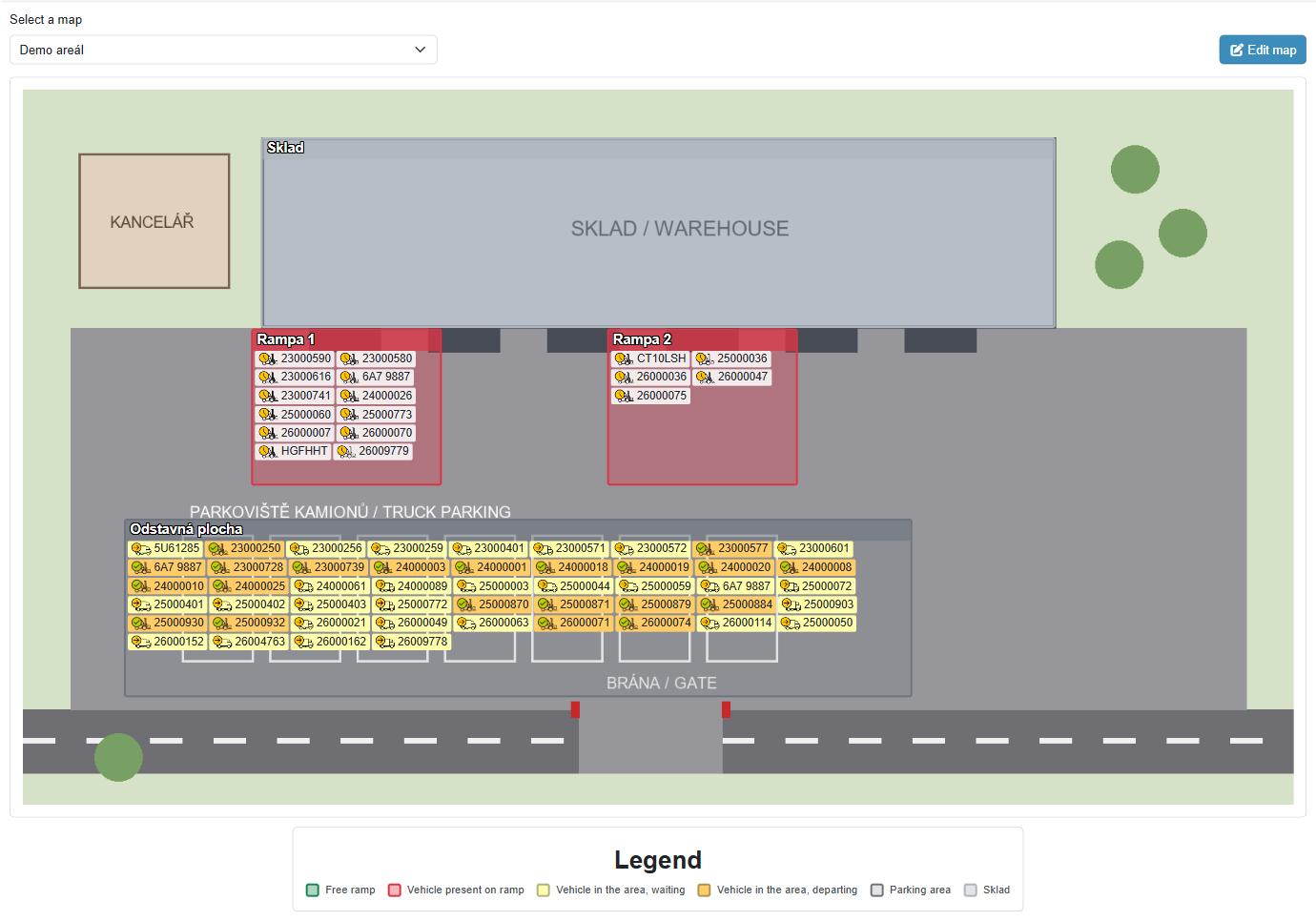
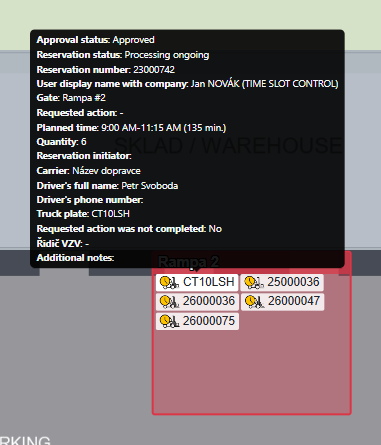
Each vehicle shows the licence plate, carrier, driver and reservation number with the same state icon as in the reservation overview. Hovering shows the times (arrival at the area, arrival at ramp, departure from ramp, planned ramp, reservation time). Clicking opens the reservation actions or detail, depending on your permissions. The states are explained in the Legend.
Important: The parking area only shows vehicles if the branch office has gate arrival registration enabled. Without it the area stays empty – the designer warns about this.