¶ System Settings - Overview
The Overview tab covers:
- Schedule display and reservation freezing
- Long-term view and gate protection
- Miscellaneous settings and colour highlighting of statuses
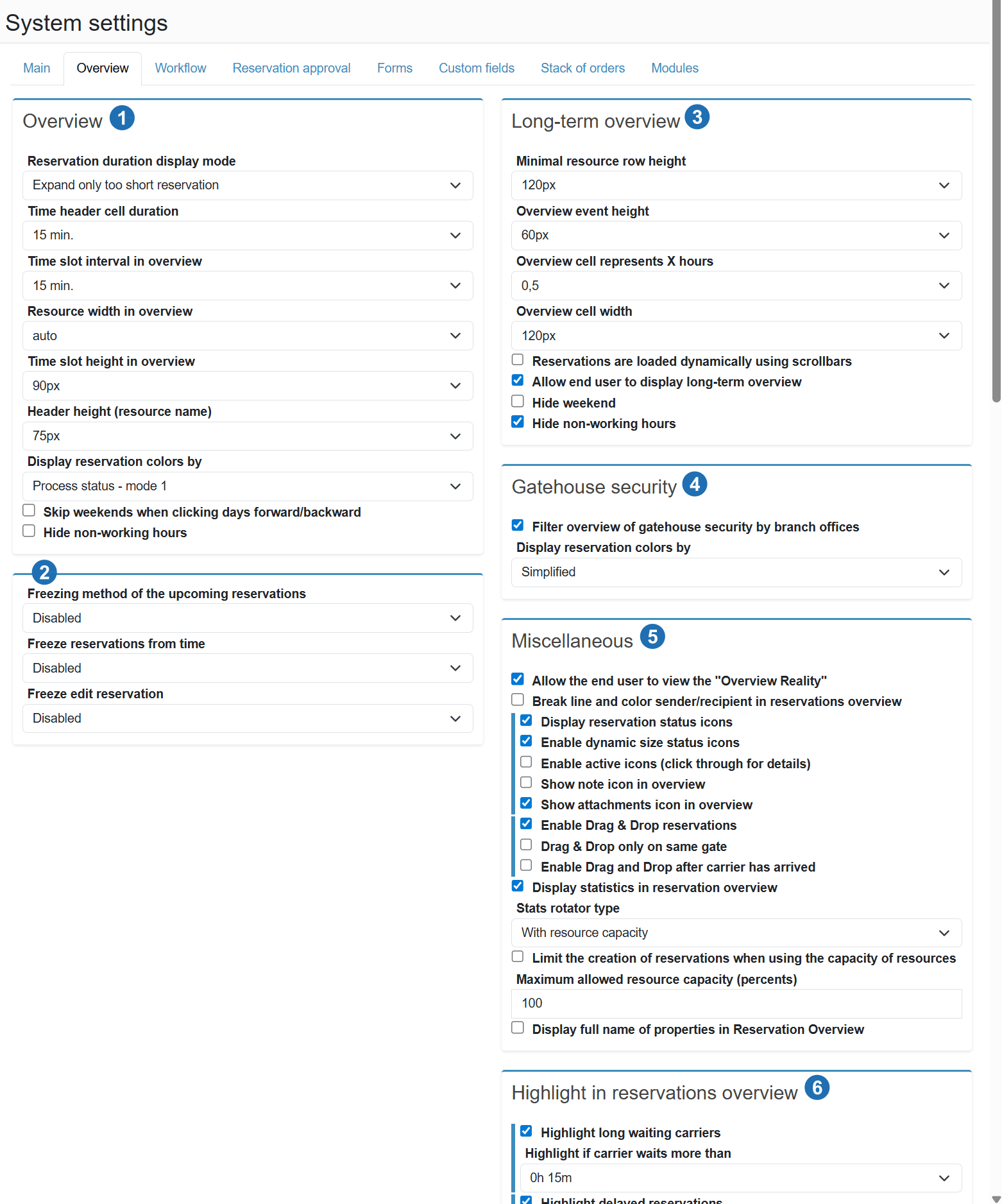
¶ Overview (1)
Reservation display mode in the calendar
Determines how reservation blocks are visually rendered in the schedule. The option Stretch only too-short reservations enlarges short blocks to a minimum readable height while keeping all others proportional to their duration.
Timeline interval in the overview
Granularity of the time axis in the reservation overview - for example, 15 min means each division represents 15 minutes. A smaller interval increases display accuracy but also increases the overall size of the schedule.
Time window interval in the overview
Minimum length of a single time slot shown in the overview. Determines how narrow the shortest block on the timeline can be.
Resource column width in the overview
Width of the column for each resource (dock) in the overview. The auto setting adapts to the available screen space; a fixed pixel value ensures consistent display regardless of screen resolution.
Time window height in the overview
Height of a single reservation block in the overview. A larger value makes text inside the block easier to read; a smaller value displays more reservations at once.
Header height (resource/dock name)
Height of the column header showing the resource or dock name. A larger value allows longer names or more information to be displayed in the header without being cut off.
Colour reservations by
Determines the colouring scheme for reservation blocks in the overview. Reservation process status - mode 1 assigns a colour based on the current workflow state (arrival, loading, departure). Other modes allow colour differentiation by approval status or another attribute.
Skip weekend when navigating days forward/backward
When navigating by day, Saturday and Sunday are skipped - a forward step from Friday goes directly to Monday. Useful for operations that do not work on weekends.
Hide non-working hours
Hides hours outside working time in the daily view of the overview. Reduces the height of the schedule and focuses attention on active time periods.
¶ Reservation Freeze (2)
Freeze mode for upcoming reservations
Prevents creating a reservation for a time slot that is too close to the current moment. Inactive = no restriction. For X following hours (floating) = a reservation cannot be created if its start falls within the next X hours - if set to 4 hours and the current time is 14:00, no reservation starting before 18:00 can be created. Current day = no reservation for today's date can be created at all. For details, see the Reservation Freeze guide .
Freeze mode for reservations from a given time
Prevents creating new reservations after a set number of hours from the current moment - regardless of which time slot the reservation targets. Inactive = no restriction. From X following hours = once X hours have elapsed from the current moment, no new reservations can be added - if set to 4 hours and the current time is 14:00, creation is blocked from 18:00 onwards. For details, see the Reservation Freeze guide .
Reservation edit freeze mode
Determines when a reservation becomes locked for editing. Inactive = no restriction. X hours before planned start = the reservation locks the given number of hours before the scheduled start - prevents last-minute changes before arrival. X hours after planned start = the reservation remains editable for a set period after it begins, then locks - allows correcting mistakes shortly after arrival but prevents retrospective changes.
¶ Long-term Overview (3)
Minimum row height for a resource
Minimum height of a single row (resource/dock) in the long-term overview. A larger value ensures readable display even when there are few events in the row.
Event height in the overview
Height of a single event block in the long-term overview. A smaller value displays more events at once within a single row.
Overview cell represents X hours
The width of one cell in the long-term overview corresponds to this number of hours. A value of 0.5 means each cell represents 30 minutes - the lower the value, the finer the time resolution.
Overview cell width
Physical width in pixels of a single time cell in the long-term overview. A larger value makes labels inside the cells easier to read.
Reservations are loaded dynamically using scroll
When scrolling through the overview, reservations are loaded progressively (lazy loading) rather than all at once. Improves performance for operations with a large number of reservations or a long time range.
Allow end users to view the long-term overview
Makes the Long-term Overview tab accessible to regular users (carriers). When disabled, this view is available to administrators and internal staff only.
Hide weekend
Hides Saturday and Sunday in the long-term overview. Reduces the width of the schedule and keeps the focus on working days.
Hide non-working hours
Hides time cells outside working hours in the long-term overview. Narrows the display to the relevant part of the day.
¶ Gate Protection (4)
Filter gate protection view by branch
The gatehouse view shows only reservations assigned to the same branch as the gatehouse. Prevents a gate operator from seeing reservations from other locations.
Colour reservations by
Colour differentiation mode for reservations in the gatehouse view. Simplified uses fewer colours for a cleaner display - suitable for gate operators who do not need detailed status differentiation.
¶ Miscellaneous (5)
Allow end users to view "Actual Overview"
Makes the Actual Overview tab (comparison of actual arrivals against the plan) accessible to regular users. Carriers or customers can then monitor plan fulfilment without administrator access.
Separate and colour-code sender/receiver in the reservation overview
Displays the sender and receiver on a new line with colour coding inside reservation blocks in the overview. Helps quickly identify the parties to a shipment without opening the reservation detail.
Show reservation status icons
Displays icons for the current workflow state (arrival, loading, departure) directly inside reservation blocks in the overview. Allows monitoring transport status without opening the detail.
Enable dynamic size for reservation status icons
Status icons adapt to the size of the reservation block - they shrink for short reservations and display fully for longer ones. Prevents icons from overlapping text in the overview.
Enable active icons (click to open detail)
Clicking a status icon in the overview opens the reservation detail or performs the corresponding action. Without this setting, icons are informational only and non-clickable.
Show note icon
Displays a small icon on a reservation block when a note is attached to it. Allows quick identification of reservations with a comment without opening the detail.
Show attachment icon
Displays a small icon on a reservation block when files are attached to it. Makes it immediately visible which reservations have uploaded documentation.
Enable Drag & Drop for reservations
Allows reservations to be moved in the overview by dragging them to a different time or a different dock. A quick way to reschedule without having to open the reservation form.
Drag & Drop on the same dock only
Restricts dragging to time changes within the same dock - a reservation cannot be dragged to a different dock. Prevents accidental reassignment to another resource.
Allow Drag and Drop after the carrier has arrived
By default, dragging is disabled once the carrier has arrived. Enabling this option removes that restriction and allows rescheduling even while a vehicle is being served.
Show statistics in the reservation overview
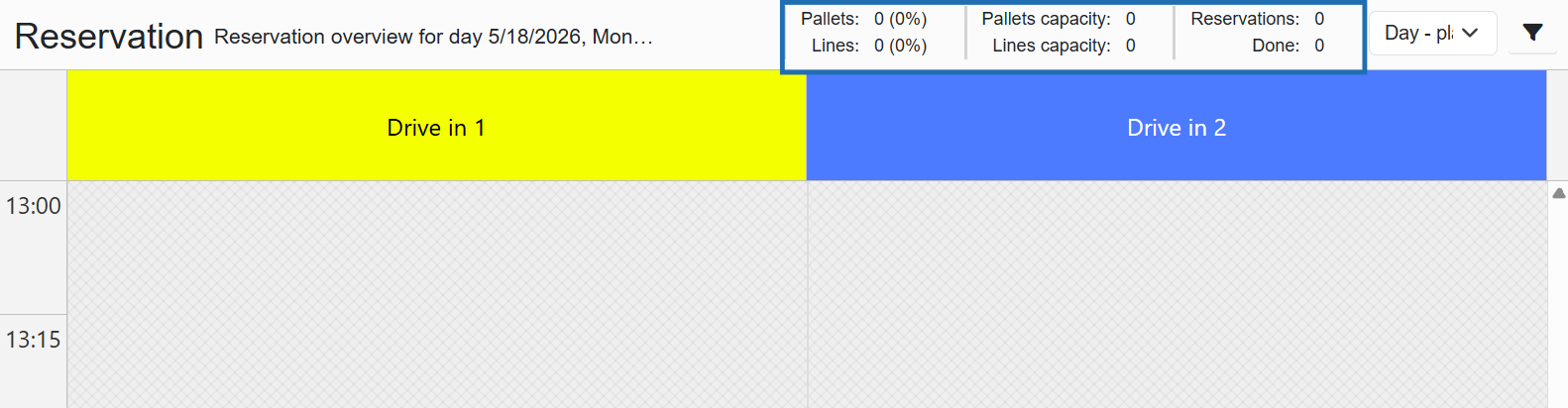
Displays rotating statistics in the header of the reservation overview - for example dock occupancy or vehicle counts. Allows monitoring workload without switching to a different view. The type of statistics shown is configured by the Statistics rotator type option below.
Statistics rotator type
Only applies when "Show statistics in the reservation overview" is enabled
Determines which statistics appear in the header rotator. With resource/dock capacity shows the current occupancy of each dock relative to its capacity.
Determines which statistics appear in the header rotator. With resource/dock capacity shows the current occupancy of each dock relative to its capacity.
Restrict reservation creation when resource capacity is reached
Prevents creating a new reservation on a resource (dock) that has reached its maximum capacity. The threshold is set using the Maximum allowed resource capacity field below.
Maximum allowed resource capacity (percentage)
Only applies when "Restrict reservation creation when resource capacity is reached" is enabled
The occupancy percentage at which the system will refuse to create another reservation on a given resource. A value of 100 means full capacity. A lower value keeps an operational buffer for unplanned arrivals.
The occupancy percentage at which the system will refuse to create another reservation on a given resource. A value of 100 means full capacity. A lower value keeps an operational buffer for unplanned arrivals.
Show full record names in the Reservation Overview
Displays full company and resource names in the overview instead of truncated text. Suitable for operations with short names or screens with sufficient width.
¶ Highlight in the Reservation Overview (6)
This section contains more colour-highlight rules than are visible in the screenshot. The options below cover the main settings; additional highlight options may be available in the application.
Highlight carriers waiting too long
Visually highlights reservation blocks where the carrier has been waiting to be served longer than the configured threshold. Alerts staff to a vehicle that has been standing too long.
Highlight if waiting longer than
Time threshold that triggers the waiting carrier highlight. Once the configured time (e.g. 0 hr 15 min) has elapsed, the reservation block changes colour in the overview.