¶ Notification rules
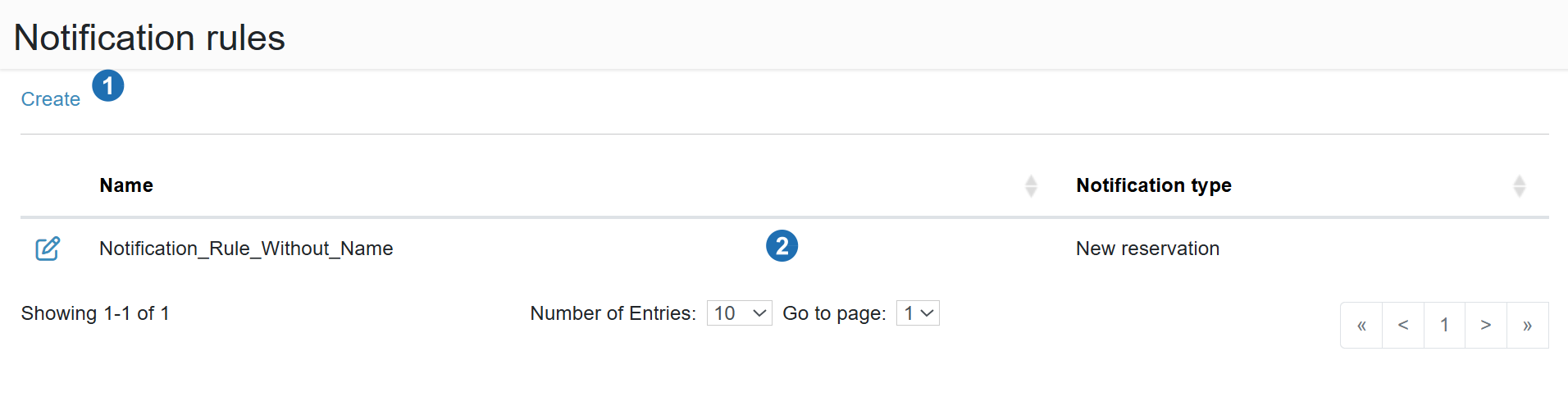
The page manages rules that determine who receives notifications and under what conditions. Each rule is linked to an event type (e.g. new reservation, reservation change) and to the recipients who should receive the message.
Set up a notification template first
A rule defines who and when a notification is sent — but the message content (email or SMS text) is defined by a template. Before creating a rule, make sure a template exists for the notification type you want to use, or create one in Notification templates.
¶ Legend - list
1. Create
Link to add a new notification rule.
2. Table data
List of rules (Name, Notification type); edit icon at the start of each row to modify a rule; pagination at the bottom of the table.
¶ Notification rule form
¶ Legend - form
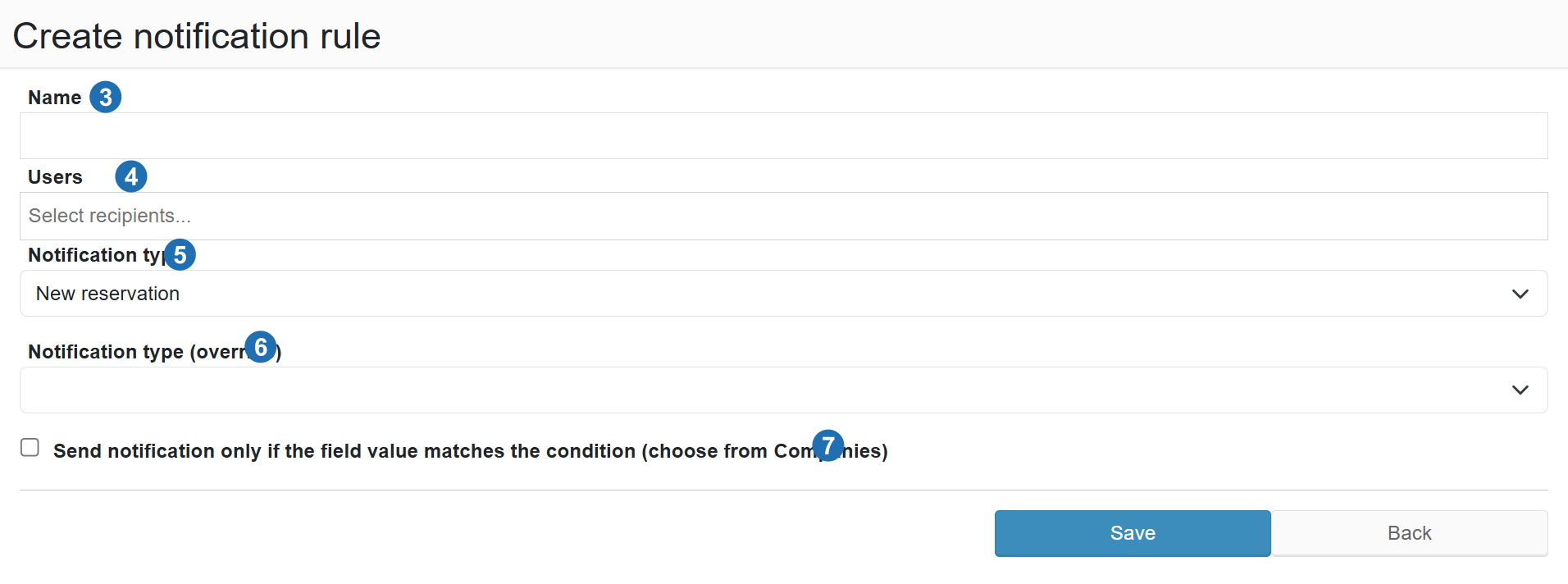
3. Name
Rule name (required) — used to identify the rule in the list.
4. Users
Notification recipients — select the users or groups who should receive the message when this rule's conditions are met.
5. Notification type
The system event that triggers this rule (e.g. New reservation, Reservation change, Reservation approved). The notification is sent every time the selected event occurs — unless a condition is set in field 7. Make sure a template exists for this type in Notification templates.
6. Notification type (override)
Allows this rule to send a different template than the default one linked to the notification type. Example: the "New reservation" type normally sends a generic template — but with an override, this rule can send a specialised template for a specific carrier instead. Leave empty to use the default template.
7. Send notification only if
field value meets
condition
field value meets
condition
When checked, additional fields appear to define the condition:
Field name — select the reservation field whose value should be checked. This includes standard system fields (e.g. Carrier, Company, Branch) as well as custom fields defined in your setup — see Custom reservation fields.
Example: send the notification only when the "Carrier" field matches a specific value — so the rule fires only for reservations assigned to that carrier, not all of them.
Field name — select the reservation field whose value should be checked. This includes standard system fields (e.g. Carrier, Company, Branch) as well as custom fields defined in your setup — see Custom reservation fields.
Example: send the notification only when the "Carrier" field matches a specific value — so the rule fires only for reservations assigned to that carrier, not all of them.