¶ Reservations - Action dialog designer
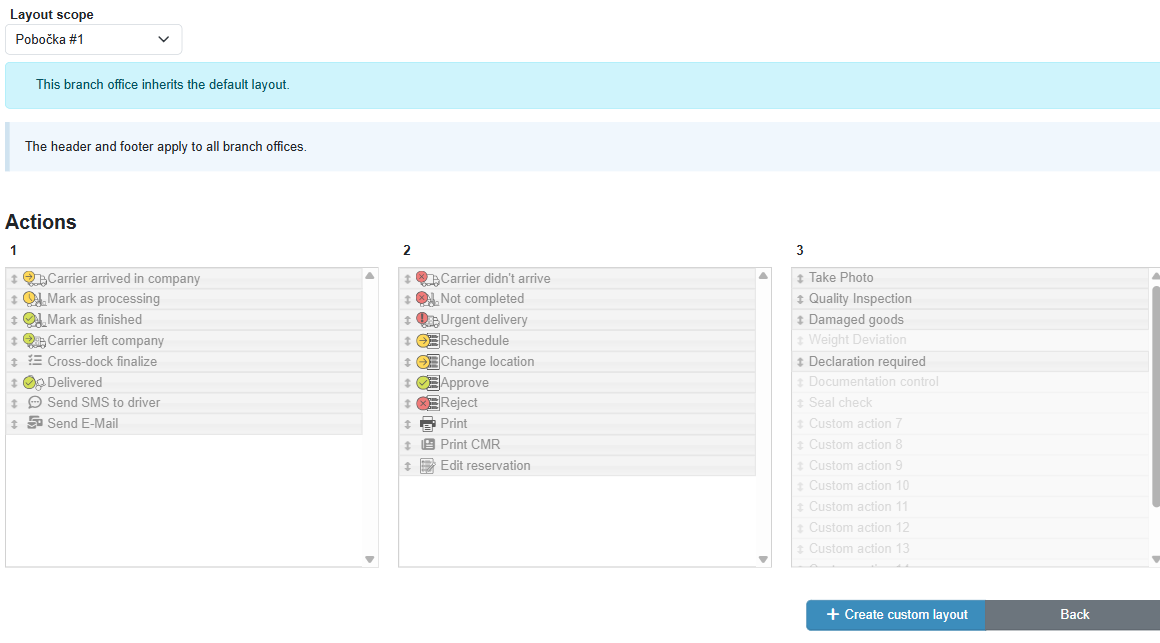
The Action dialog designer defines what the reservation action dialog looks like. The page has three parts:
- Header – reservation information shown above the action buttons,
- Actions – layout of the action buttons in columns 1–3,
- Footer – reservation information shown below the action buttons.
The order of actions and the content of the header and footer are changed by drag-and-drop. Saving takes effect immediately in the action dialog for all users.

¶ Header and footer
Fields are dragged into the header and footer between the Assigned fields and Available fields lists. The order of fields in the Assigned fields list is the order in the dialog.
- Where they are shown – in the action dialog of the operator, the gatehouse and the end user, always in the main dialog view with the action buttons.
- Default content – the header contains the reservation number and start, the footer is empty. Both can be emptied completely; an empty part is not shown in the dialog.
- Appearance in the dialog – each value has its own line, also on a phone. The reservation number is shown in bold, a missing value is shown as "–".
- Permissions – the panel shows only information the user is allowed to see. Without the permission to view the reservation no field is shown; SMS and e-mail counts and urgent delivery are shown only with the corresponding permission.
- Scope – the header and footer apply to the whole tenant. When a branch is selected in Layout scope, they are read-only with a note that they apply to all branches. The action button layout can still be set per branch.
- Touch devices – on touch devices no tooltip is shown over a reservation; reservation information is available there only in the action dialog.
The panel is turned on and off in System settings → Forms → Reservation actions dialog with the Display reservation information option. When it is off, the designer shows a note; the configured content is kept.
¶ Legend
¶ Custom layout for a branch
The layout of the action buttons can be set separately for each branch. A branch without its own layout inherits the default layout.