¶ Reservation - Create Reservation
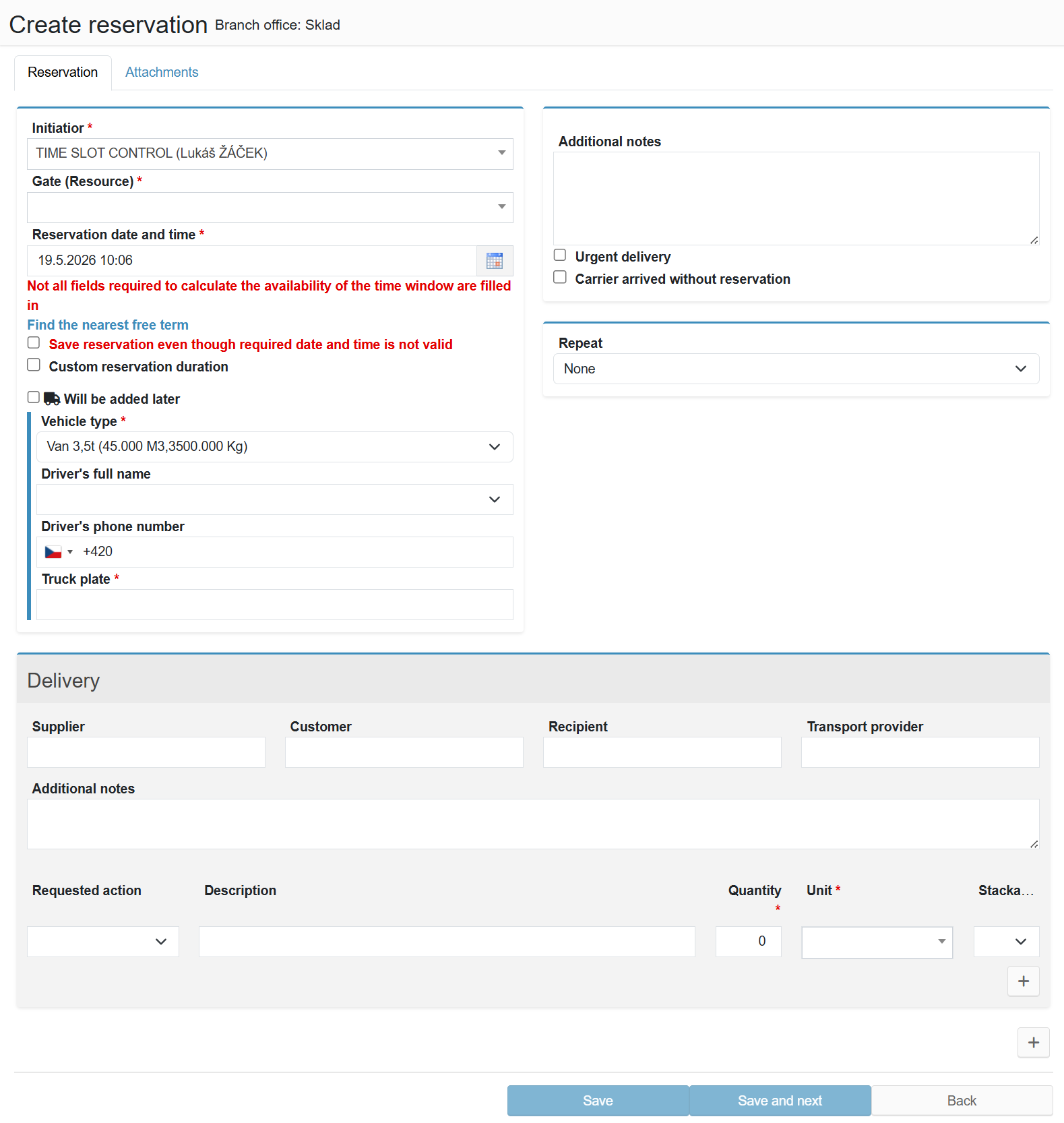
Form for creating a new reservation. It consists of two tabs — Reserve (main data) and Attachments — and a Shipment section describing the transported goods.
The form can be opened in two ways:
- by clicking a cell in the calendar — the system pre-fills the date, time and dock
- via the "New" button in the left navigation — date and dock must be filled in manually
¶ Slot availability
A reservation can only be created for a time slot that meets all of the following conditions:
- not already reserved by another user
- not in the past
- not blocked by the opening hours of the selected dock (gate)
- not blocked by a working hours exception
Unavailable time slots are shown in the calendar with grey hatching. If an unavailable slot is selected, the system displays a warning and offers:
- Find the nearest available slot — switches to the nearest available slot
- Save despite invalid slot — permitted for operators only
¶ Form tabs
¶ Basic fields (left column)
¶ Right column
¶ Shipment
Each reservation contains one or more Shipment sections. Each section describes one consignment transported within the reservation. Add a new Shipment section using the + button below the last row.
¶ Reservation duration calculation
After the required fields are filled in, the system automatically calculates the reservation duration and shows the end time in the "Reservation date and time" field.
The calculation method depends on the dock configuration:
Fixed duration
A fixed time window length regardless of the quantity of units being transported. All reservations on that dock have the same duration.
Dynamic duration
The duration is automatically calculated by an algorithm based on the number of transport units (pallets, cage pallets, etc.). The more units, the longer the reservation.
The duration calculation method is set by the system administrator for each dock individually. The setting may differ across docks.
¶ Attachments tab
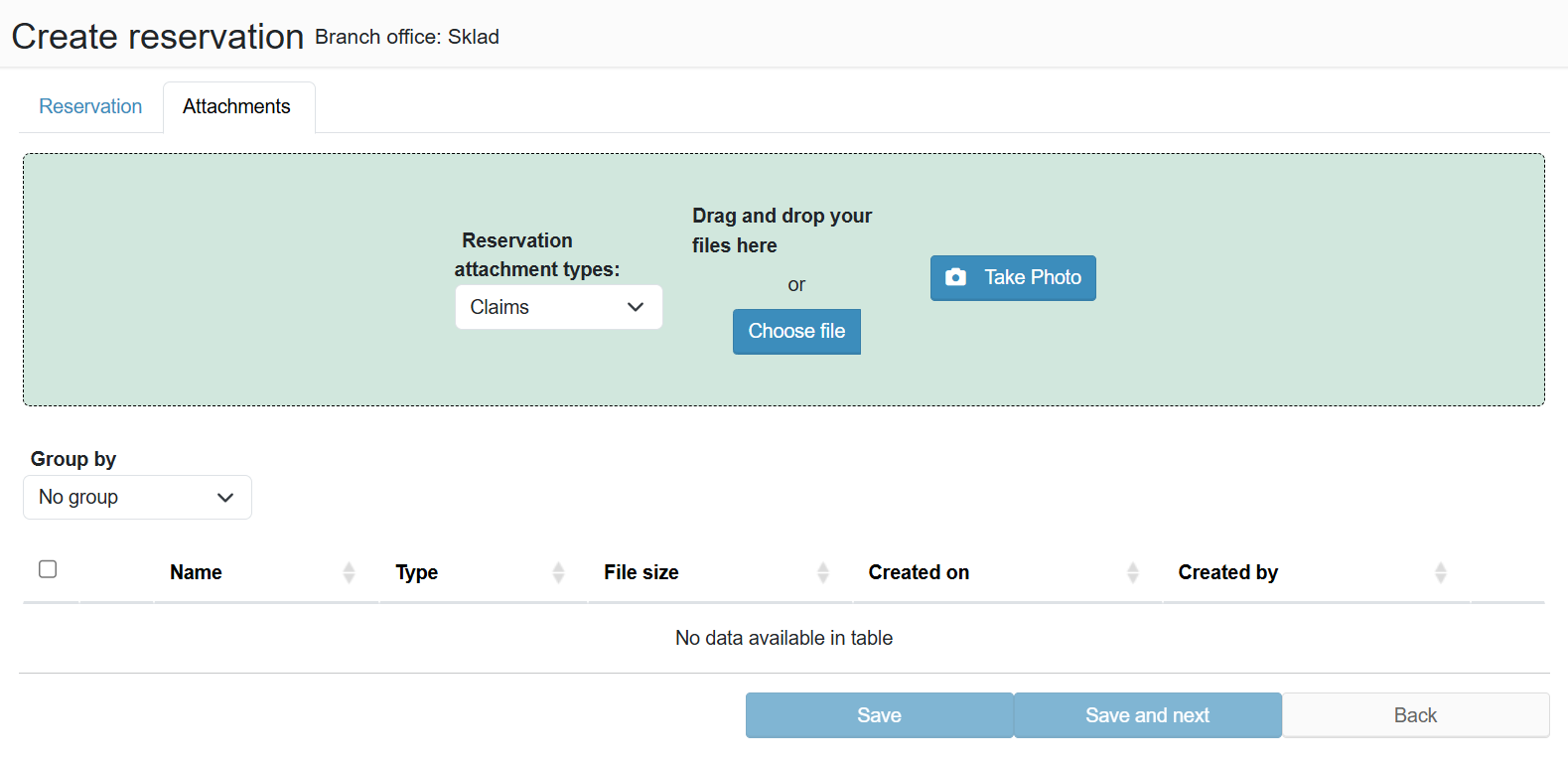
The attachment upload feature is enabled by the system administrator. If the Attachments tab is missing from the form, this feature is not enabled in your installation.
¶ Saving the reservation
After filling in all required fields, save the reservation using the Save button at the bottom of the form.
If the system requires approval, the request is automatically sent to the operator for approval after saving. In the calendar, the reservation is marked with the "pending approval" icon.
The approval and processing workflow is described on the Processing Workflow page.